Start with the existing job or order when something goes wrong. Its status shows whether processing, delivery or payment confirmation is still pending; submitting again can create a separate request.
Find the problem by what you see
| What happened? | First check | Next step |
|---|---|---|
| Video or audio rejected | The actual file type, size and playable duration. | Re-export a supported file. |
| Not enough shared duration | How much remains after each start point. | Use the trimming example. |
| No sound or a mechanical voice | Which player you opened and what the replacement recording sounds like. | Check the soundtrack. |
| Job appears stuck | The existing job’s current status. | Check before resubmitting. |
| Payment returned, credits missing | Confirmed order status, not just the return page. | Review the account record. |
| Download link expired | Whether only the short link or the stored result expired. | Request a fresh owned link. |
Prepare the right inputs
Use an existing MP4 video with one clearly visible speaker, up to 200 MB and two minutes. Add a WAV or MP3 recording up to 25 MB and two minutes. Select at least five seconds of usable overlap. New audio replaces the original video soundtrack; it does not mix with it.
If a file is rejected, confirm it has a playable video or audio stream, re-export it in a supported format, and try a shorter, simpler recording. A filename extension alone does not confirm that a file can be decoded. See the online usage guide.
No sound, the wrong voice or unchanged lip movement?
Start with the player and recording
Unmute the player, raise the device volume and play the replacement audio on its own. The public example’s original video is silent; select Generated result · with audio to hear its output. MuseTalk uses the supplied recording, so identical narration in the result and input-audio player is expected.
A synthetic or noisy recording stays synthetic or noisy. MuseTalk changes mouth movement, not the voice or words. If the public sample sounds mechanical, that sample uses eSpeak narration. A different recording requires a new generation; changing a soundtrack alone is not a new lip-sync test.
Review the generated clip
Input playback checks your selected footage and recording; it is not the generated result. After delivery, inspect the complete output for timing, lip edges and face-detail changes. Compare the recorded example and its limitations. Include the job reference and affected timestamps when reporting a delivered result.
Free credits and downloads
New verified accounts receive 10 free credits once, valid for 30 days. Use them for one 10-second clip or two 5-second clips, with audible preview and download. No card or automatic subscription.
Technical failures release reserved credits. Further logins do not create another grant. Earlier one-clip free entitlements keep their original watermark and successful-delivery terms.
A task failed, is waiting or seems stuck
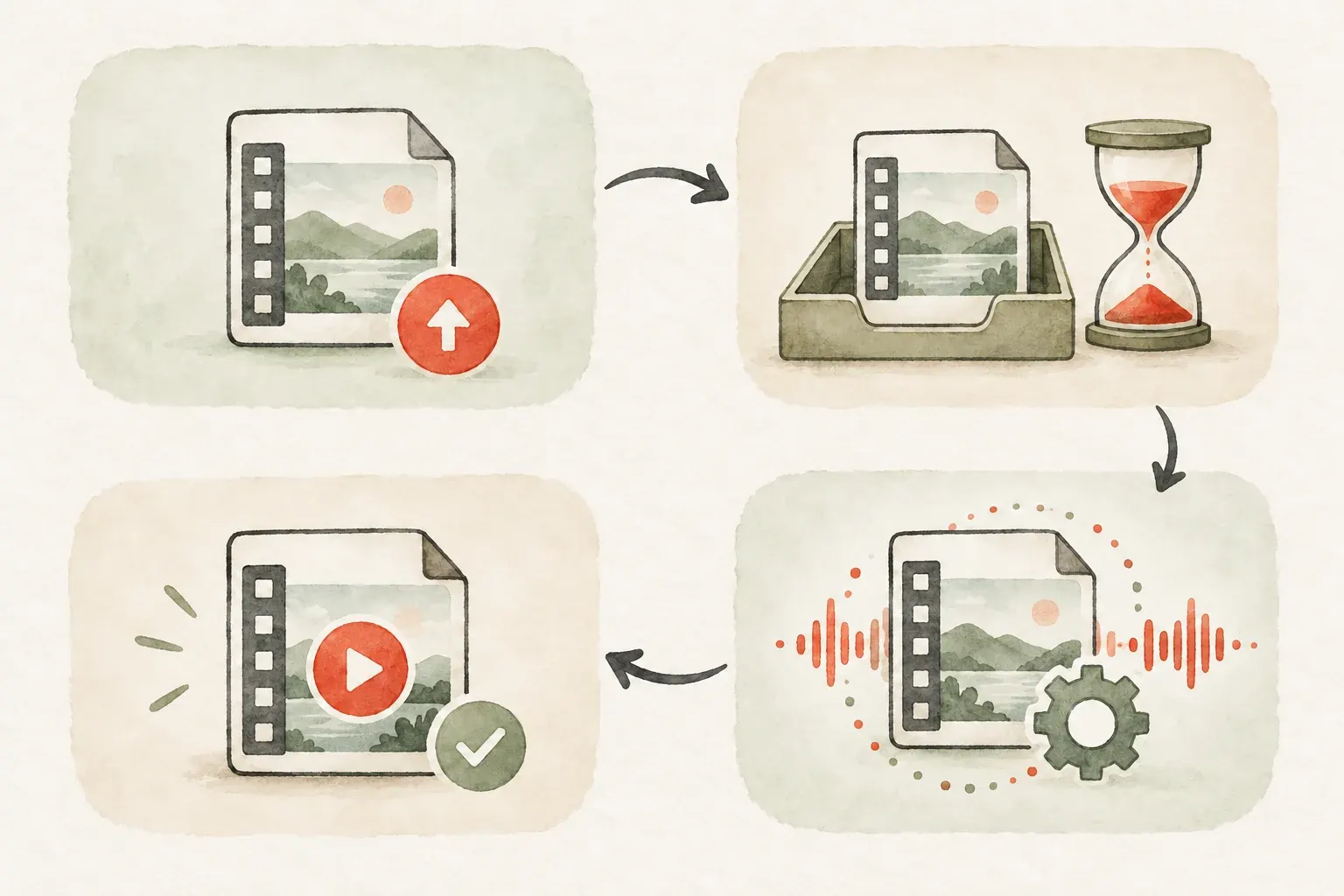
Check your jobs before submitting the same files again. Closing the browser does not cancel processing. A job may move through submission, queueing, generation and output verification; verification includes making sure the file and sound can actually be delivered.
A confirmed terminal technical failure releases the original reserved credits or restores the job’s free entitlement. An uncertain provider response first needs reconciliation. A cancellation request may not stop work already processing, so wait for the confirmed task status. Your account shows the final settlement.
Credits, expiry and payment confirmation
Your credit ledger shows available and reserved amounts, purchase batches and expiry. One credit is one second of final output, rounded up. A failed job returns valid credits to their original batch. If an allocation expired during processing, eligible technical-failure compensation is a separate traceable batch; user cancellation does not extend expiry.
A checkout return page alone is not proof of payment. If a future live payment is pending, wait for confirmation rather than paying again. Contact support with the order reference if payment and your account remain inconsistent. Do not send your card number or security code.
Cancel or change a subscription
Use Billing to review the current plan, renewal date and cancellation status. Cancellation stops the next renewal and keeps the current paid period. Plan changes take effect at the next cycle; you can buy a one-time pack if you need more credits in the meantime. Refund requests are reviewed separately.
Download, save or delete files
Download the completed video before the seven-day result window ends. Finished-task inputs and temporary media are scheduled for removal within 24 hours. A private download link lasts no more than five minutes; request a fresh one from your account if it expires.
You can delete a terminal job’s media earlier. An in-progress task must reach a terminal state before deletion; request cancellation first where available. Deleting media revokes new access but does not erase the accounting records needed to explain a purchase or credit settlement.
Still need help?
Include your job or order reference, when the issue happened, your browser and a short description. Contact MuseTalk support ↗