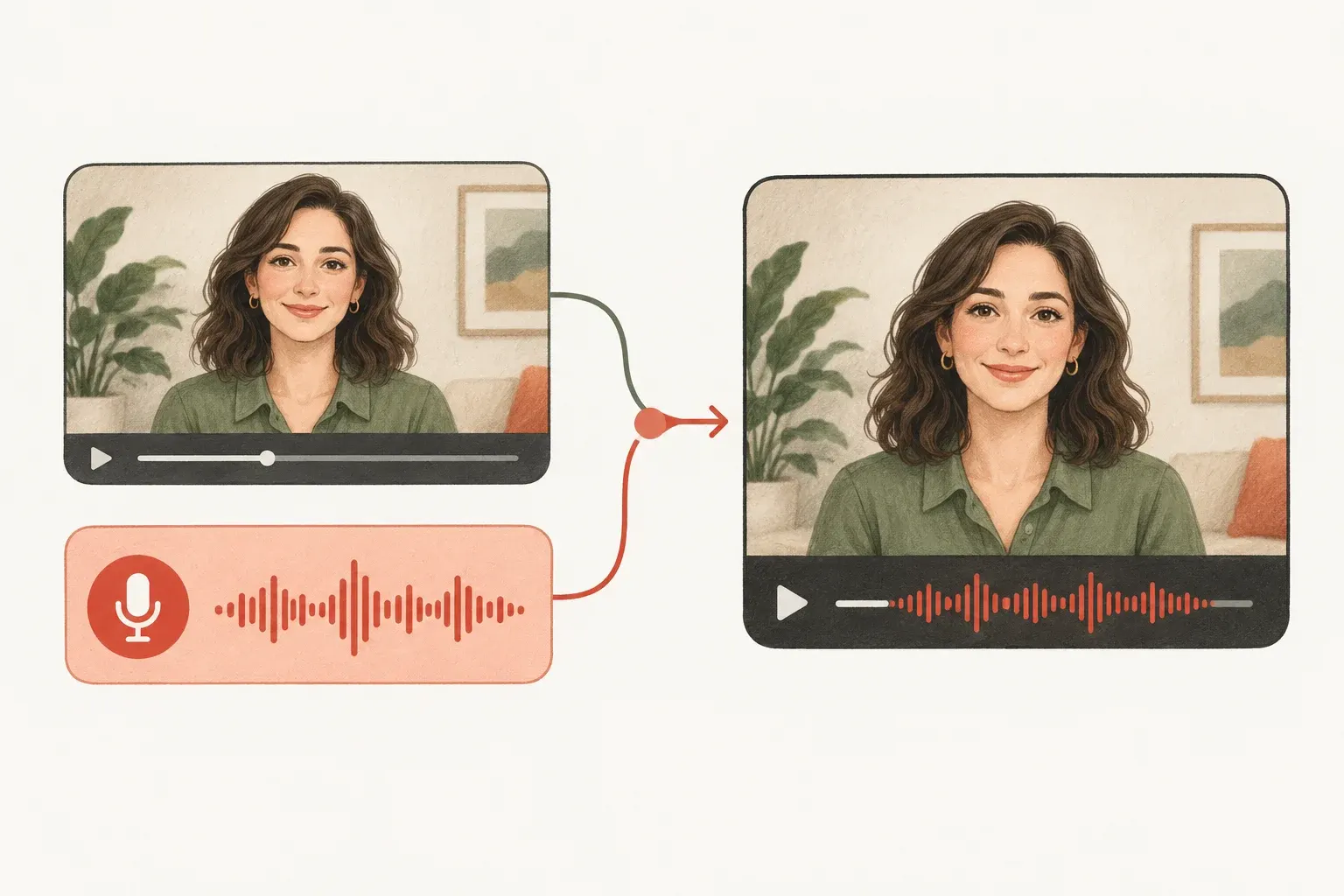
Previewing selected inputs helps you check the scene and recording. Generating creates a separate lip-sync job; after delivery, review that output with sound. The public example shows a recorded MuseTalk result and its input conditions.
Start with the problem you want to solve
If your finished clip has the wrong mouth movement, use the AI video lip-sync repair guide. To update an introduction or correction, follow replacing one recorded line. If a translated recording is already finished, see matching the lips to an existing dub.
Prepare two files with enough usable overlap
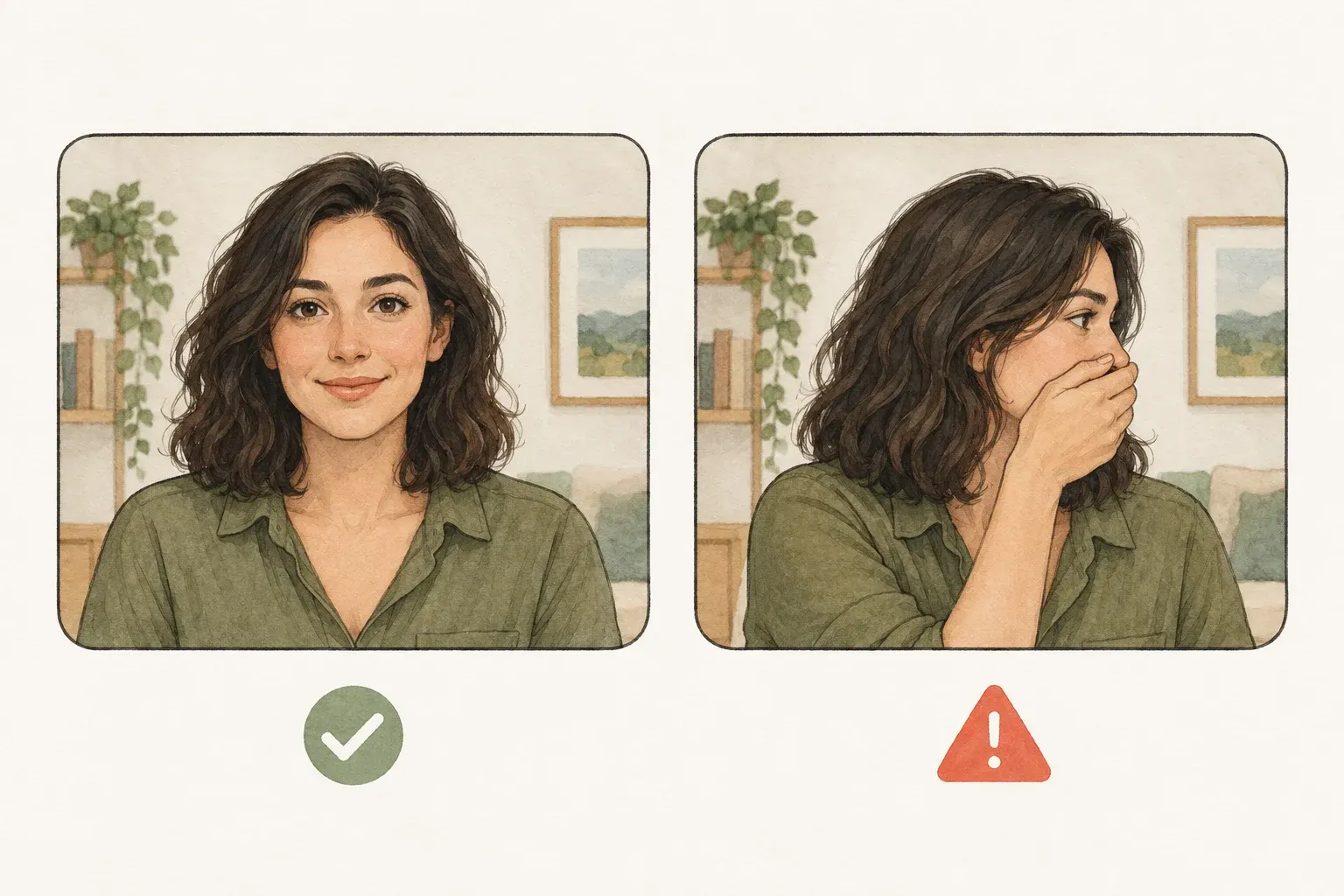
Choose one visible speaker and speech you already recorded or have permission to use. A silent source video is acceptable: the replacement recording becomes the result’s soundtrack.
| Input | Accepted here | Check first |
|---|---|---|
| Video | MP4 · up to 200 MB · up to 2 minutes | One clear speaker, an uncovered mouth and a steady passage without a scene cut. |
| Audio | WAV or MP3 · up to 25 MB · up to 2 minutes | Finished speech with the intended words and voice, long enough for your selection. |
| Free output | 10 free credits per new verified account, valid for 30 days | Audible preview and download, no card or automatic subscription. |
| Paid output | 5–60 seconds per clip | An explicit credit-mode choice and enough available credits for the quote. |
A renamed extension does not convert a file. See upload troubleshooting if your file is rejected.

Choose your video before signing in
Select Upload video and choose an MP4 from your device. This previews the file on your device before an authenticated upload. Watch for cuts, another face entering the frame or an obscured mouth. Keep this tab open: refreshing or leaving the page discards unuploaded selections.
Add and listen to your replacement audio
Choose Add audio and select a WAV or MP3 recording. Listen to the whole passage and check the voice, words and delivery. This recording replaces the video soundtrack rather than mixing with it. MuseTalk does not generate, clean up or translate this audio for you.
Set start points and the shared clip length
After both files are added, use Video start (seconds), Audio start (seconds) and Clip length (seconds). Credit-funded clips support 5–60 seconds; earlier accounts with an available free entitlement retain the 5–10 second limit. Both sources must contain enough material after their start points. Preview selected inputs together checks your scene and recording; it is not a generated lip-sync result. Final duration aligns down to full 40-millisecond frames, without looping footage or padding a short recording.
Confirm permission and sign in to upload
In the review area below your files, confirm permission to use the footage, voice and likeness and that one clear speaker is visible. Select Sign in & create my clip when ready. In-page sign-in retains your selections and settings, then uploads them to your account. The service validates the actual streams and duration. A renamed extension or successful browser playback alone does not establish that a file is suitable.
Review the quote, then confirm the generation
New verified accounts receive 10 wallet credits once, valid for 30 days. Review my clip shows your start points, final duration, credit amount, watermark and expiry before confirmation. Earlier accounts with an available free entitlement can still choose their original 5–10 second benefit. Changed or expired quotes must be refreshed. On the public service, confirmation submits an asynchronous generation job; explicitly labeled local simulations are development previews only.
Follow the job, preview with sound and download
An accepted job moves through submission, queueing, generation and delivery checks. Closing a browser tab does not cancel it. Use My videos to revisit the existing job rather than submitting again. After delivery, watch the complete MP4 with sound. The preview and download use the same verified file. Save a copy before its seven-day result window ends; an eligible free result is not locked behind a purchase.
A concrete example: replace eight seconds of speech
Suppose the useful scene starts 12 seconds into a 30-second video, and the new sentence starts 2 seconds into a 15-second recording. Set Video start to 12, Audio start to 2 and Clip length to 8. The selected video ends at 20 seconds; the audio ends at 10 seconds. Both files contain enough material. An eight-second credit-funded selection uses eight credits; review the quote before confirming.
If the video start were 25 seconds instead, only five seconds would remain. Move the start earlier or shorten the clip. The service does not silently stretch speech, repeat footage or pad missing frames.
Duration aligns down to complete 40 ms frames: 7.99 requested seconds becomes 7.96 seconds. An exact 8-second choice stays 8 seconds. Paid credits then round the aligned duration up to whole seconds; see credit calculation examples.
Review lip movement separately from voice quality
Check pauses, quick phrases, the lip edges and surrounding skin. An attractive frame does not prove stable movement through a whole clip. Try a steadier, more front-facing passage when the result is difficult to assess.
The sound comes from your recording. The examples include separate natural English and French recordings, as well as an earlier synthetic-voice demonstration. A new voice needs its own generation. Replacing only the soundtrack of an old result does not demonstrate a new lip-sync run.
After the free test: longer clips and paid credits
Choose Use credits for a credit-funded clip, including jobs funded by welcome or manually claimed check-in credits. Paid jobs support 5–60 seconds, at one integer credit per second rounded up after frame alignment. For example, a final 12.4-second clip uses 13 credits. The paid offers use the same generation settings and do not add the MuseTalk.app watermark.
Choose a monthly plan, annual plan or one-time credit pack. Monthly credits last for their paid cycle without rollover; packs remain valid for 12 months and need no subscription. The Billing page shows the selected offer, renewal and cancellation. Annual plans issue credits monthly. Review the current offer and final checkout terms before payment.
When your balance is too low, preserve your draft, resolve the credit shortage, and return for a fresh quote after credits actually arrive. Never assume a payment redirect means settlement. A free request is not automatically changed into paid mode, even if you already hold credits.
How long does MuseTalk take online?
This is an asynchronous job. Upload, queueing, inference and delivery checks all contribute to the wait. Upstream real-time inference descriptions are not a promise of end-to-end completion time here. Check My videos for the accepted job before trying another submission.
An individual signed download link lasts no more than five minutes, while the result is available for seven days. If only the link expired, return to the owned job for a fresh link. Download your copy before the result itself expires.
If something goes wrong
A rejected input does not consume an earlier free entitlement or capture wallet credits. Improve the recording or pick another segment. If a submitted job technically fails, its original reservation is released after the failure is confirmed. If the provider state is uncertain, wait for reconciliation and check the existing job before retrying.
A technically delivered clip may still need creative review. Look for unstable lips, face detail changes, speech mismatch or artifacts, especially during turns and pauses. Another creative attempt is a new job. Use Help or Contact with the job reference when you need a specific output reviewed.
What MuseTalk does in this browser workflow
MuseTalk uses supplied audio to guide mouth movement in existing footage. This independent web app adds file selection, private upload, segment review and job delivery. The retained example identifies the MuseTalk provider endpoint; its exact upstream checkpoint is undisclosed, so this guide does not promise a particular MuseTalk 1.5 revision.
Can I use a single photo or type a script?
This version takes an MP4 and separate WAV or MP3. It does not directly accept photos, generate speech from text, translate audio, clone a voice or act as a live-call filter. Choose the recording and footage before starting.
For research, model details or local installation, use the official MuseTalk repository. This tutorial covers the web app, not a tested Windows, CUDA, ComfyUI or Colab setup.
Keep your files and permissions in order
Only use recordings you have permission to process, with appropriate speaker consent. Download anything you need to keep before the result expires. Finished-task inputs are scheduled for removal within 24 hours; results remain available for seven days. You can delete terminal-task media sooner through your account.
Read the privacy information and refund review process before relying on the service for an important project.
Generate My Free Video