Everything is early or late.
If the mouth forms the right words but the soundtrack starts early or late, adjust the audio position in your editor first.
Adjust timing first
Fix AI video lip sync when the shot is usable but the mouth says different words. Add the intended recording and test one short passage.
Published
You confirm the selected passage and credit quote before generation.
Play the result, listen to its recording and compare the same moment.
Stock footage paired with a separate English recording in a real MuseTalk run. This demonstrates mouth-changing, not a repair test of a broken AI video.
Loads the inputs. Generation requires your confirmation.960 × 540 · 25 fps · continuous video excerpt 0–10s · natural English replacement audio, first 10s · no looped input · free-entitlement run; small delivered corner watermark
Footage: Antoni Shkraba on Pexels, video 8048249 (https://www.pexels.com/video/woman-talking-in-front-of-camera-8048249/), Pexels License (https://www.pexels.com/license/); continuous 0–10s excerpt, resized to 960 × 540 at 25 fps. Audio: LibriSpeech dev-clean, prepared by Vassil Panayotov with Daniel Povey; Panayotov, Chen, Povey and Khudanpur (ICASSP 2015), via OpenSLR SLR12 (https://www.openslr.org/12), CC BY 4.0 (https://creativecommons.org/licenses/by/4.0/), derived from LibriVox; recording 2277-149896-0032, first 10s, converted to mono 16kHz PCM WAV. Altered-media lip-sync demonstration using separate video and narration; no subject, speaker, creator or dataset endorsement. Provider endpoint: fal-ai/musetalk; exact upstream model revision undisclosed.
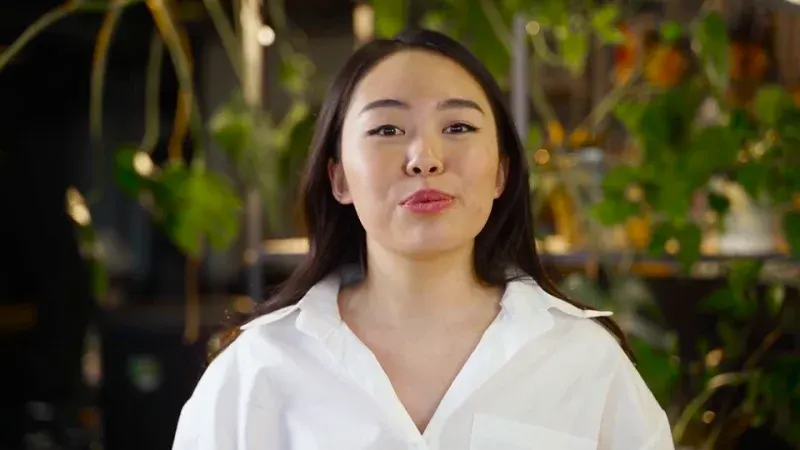
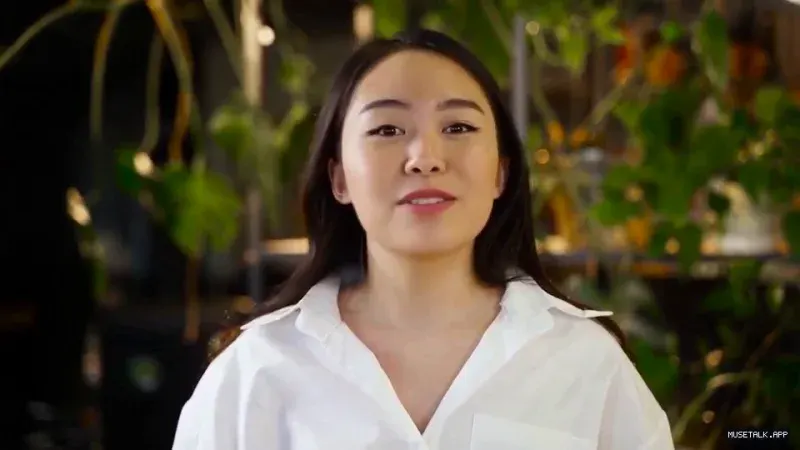
Compare identical timestamps. Play the video to judge mouth movement; stills alone do not establish lip-sync quality.
Listen at normal speed. Check speech starts, stops and silence across the whole sentence.
Inspect teeth, lip edges and the jaw during movement. Existing distortions may remain or introduce artifacts.
Need help with a delivered job? Use result troubleshooting or contact support with its job reference.
Before you fix AI video lip sync, distinguish late sound, wrong mouth movement and damaged source footage.
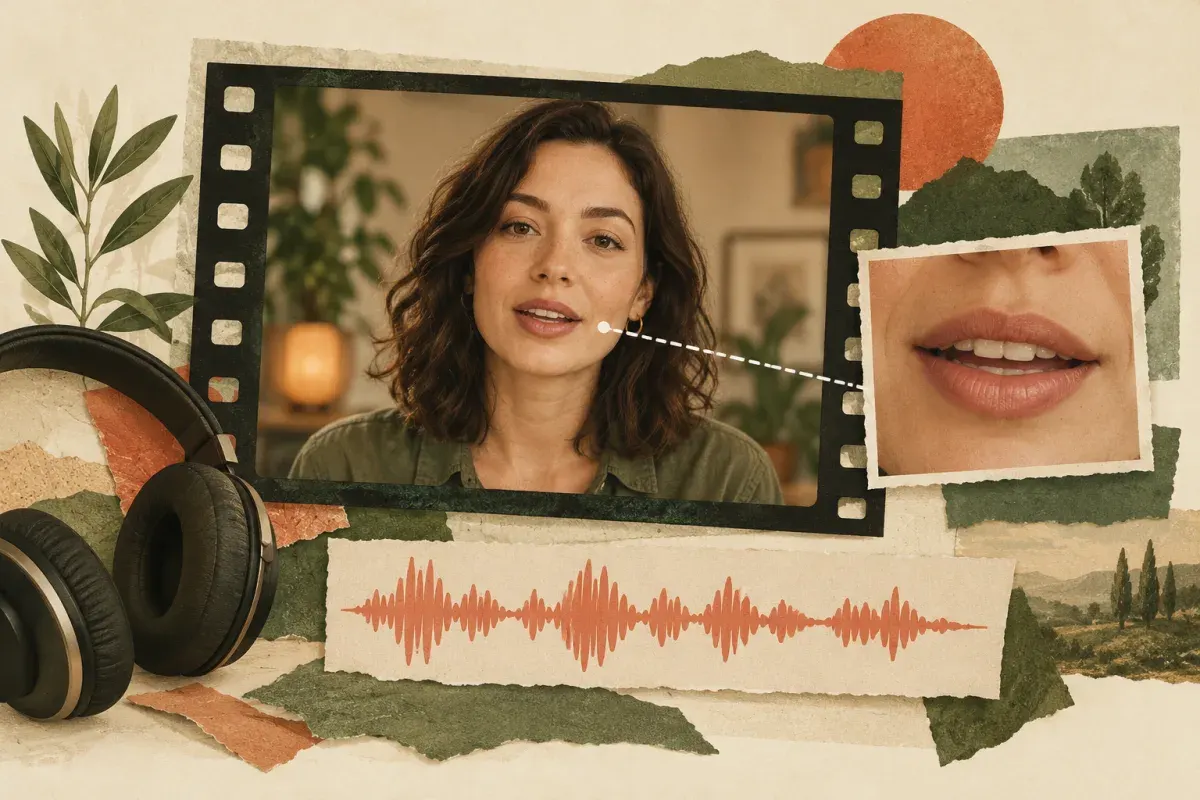
If the mouth forms the right words but the soundtrack starts early or late, adjust the audio position in your editor first.
The final recording is correct, but the visible speech belongs to another line. Try the cleanest short passage.
Choose another passage if the mouth is covered, tiny or distorted. Lip sync does not restore a damaged face.
Fix AI video lip sync on one clear sentence first. This eight-second selection is illustrative, not the settings of the real example.
Illustrative selection · not a generated testAn uninterrupted shot with one clear face.
The exact eight seconds the person should speak.
Both sources must contain the whole selection.
No looping or padding. Read the clip selection guide.
Use the generator above with your own files. For every control and input limit, use the complete online guide.
Prepare the intended speech as WAV or MP3. Export it separately if it is inside your current video.
To fix AI video lip sync, supply the exact intended recording. This workflow takes two files; it does not extract, generate or clean up the voice. Use your editor to export audio from a video.
Select one visible speaker and matching audio. Set both start points and a shared clip length.
Select your MP4 and recording in the studio. Set the video start, audio start and shared clip length. Preview the inputs to check the passage and voice. That preview only plays your sources; the new mouth movement appears after a generation.
Confirm permission, then inspect the selected duration, watermark and credit quote before generating.
Confirm permission to use the footage, voice and likeness, then sign in to upload. Review the selected duration, watermark and credit quote before confirming. Start with a short clip. The service does not stretch a short recording or repeat footage to fill the selection.
Watch the whole result with sound, including pauses and head movement.
After you fix AI video lip sync, compare the delivered MP4 with the source. Check the first words, pauses and ending. Keep it only when movement and timing fit your scene; another attempt is a new job.
See current offers on pricing. Generation starts after your confirmation.
You can try to fix AI video lip sync from an MP4 with one suitable speaker and separate final audio. File compatibility does not guarantee quality; the example is not a test of every AI video model.
Try adjusting the audio position in your editor first. A lip-sync pass changes mouth movement and is a different operation from shifting an audio track.
To fix AI video lip sync, prepare the speech as WAV or MP3. If it is inside the video, export it in your editor first. This tool does not extract the recording.
A credit-funded job supports a selected 5–60 second passage. The final length is aligned to complete frames and shown in your quote. Check the current account balance and pricing before confirming.
Need to see more first? Watch all real examples.