Approve the translated wording.
Confirm names, meaning and terminology outside this tool. Mouth matching cannot correct a mistranslation.
Finalize the message
Lip sync a dubbed video after the translation and voiceover are approved. Match one visible speaker to your finished target-language recording.
Published
You confirm the selected passage and credit quote before generation.
Play the result, listen to its recording and compare the same moment.
Portrait stock footage paired with a separate French archival recording in a real MuseTalk run. The recording is not a translation of this source scene.
Loads the inputs. Generation requires your confirmation.540 × 960 portrait · 25 fps · continuous video excerpt 0–5s · one visible adult speaker with headphones and microphone · natural French replacement audio · credit-funded QA run; 5 credits captured · no MuseTalk.app product watermark
Footage: ANTONI SHKRABA production on Pexels, video 8135208 (https://www.pexels.com/video/8135208/), Pexels License (https://www.pexels.com/license/); continuous 0–5s excerpt, resized to 540 × 960 at 25 fps with source audio removed. Audio: Multilingual LibriSpeech French, by Vineel Pratap, Qiantong Xu, Anuroop Sriram, Gabriel Synnaeve and Ronan Collobert (2020), via OpenSLR SLR94 (https://www.openslr.org/94/), CC BY 4.0 (https://creativecommons.org/licenses/by/4.0/), derived from LibriVox; archive member 11822_11650_000162, first 5s, converted to mono 16kHz PCM WAV. The source member hash was recorded; the full archive checksum was not independently verified. Altered-media lip-sync demonstration using separate video and narration; no subject, speaker, creator or dataset endorsement. Provider endpoint: fal-ai/musetalk; exact upstream model revision undisclosed.
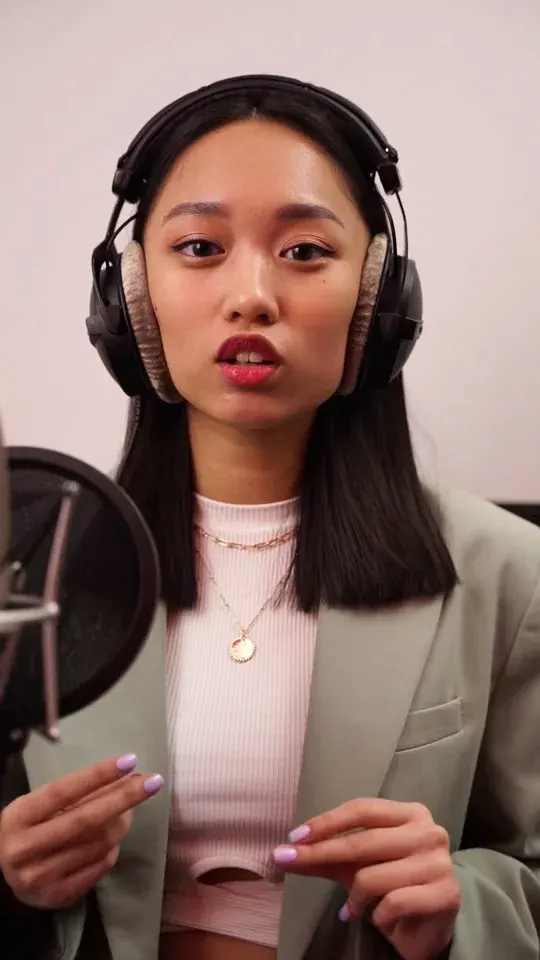
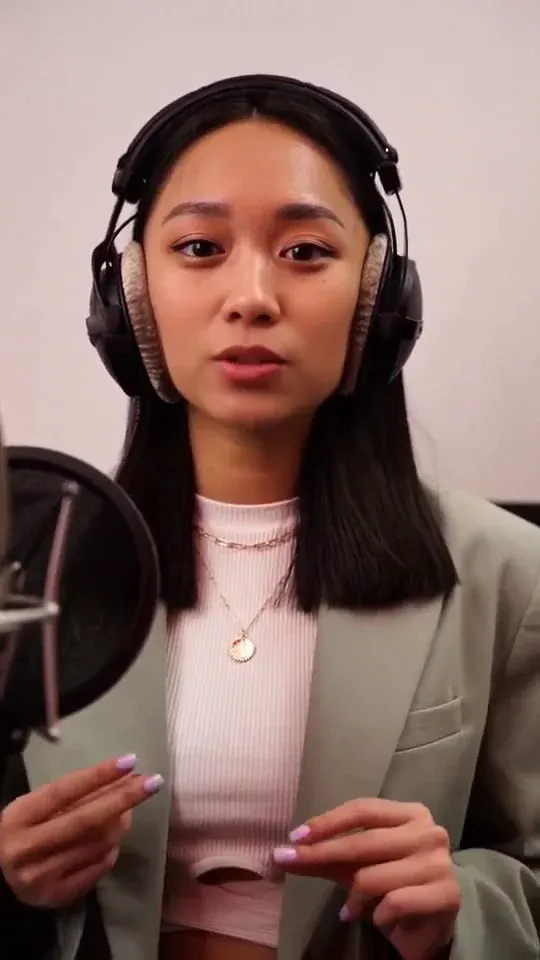
Compare identical timestamps. Play the video to judge mouth movement; stills alone do not establish lip-sync quality.
Confirm the intended words, names and pronunciation with a fluent listener. The supplied recording is not corrected automatically.
Check visible speech, silence and head turns. Review gestures and microphone occlusion as well as the lips.
Need help with a delivered job? Use result troubleshooting or contact support with its job reference.
Before you lip sync a dubbed video, approve the wording and voice. Keep each stage of localization clear.
Confirm names, meaning and terminology outside this tool. Mouth matching cannot correct a mistranslation.
Lock the voice and pace. Rerecord a sentence that does not fit the usable footage.
Choose matching start points and a shared length. Review the result with a fluent listener.
Check the shared duration before you lip sync a dubbed video. This nine-second plan is illustrative; it is not the settings of the French example.
Illustrative selection · not a generated testA continuous nine-second passage with one clear speaker.
Nine seconds from the final target-language recording.
No automatic speech stretching or video looping.
No looping or padding. Read the clip selection guide.
Use the generator above with your own files. For every control and input limit, use the complete online guide.
Prepare the original MP4 and approved target-language WAV or MP3. Translation and recording come first.
To lip sync a dubbed video, supply approved footage and a finished voice recording you have permission to process. Keep music in your editing project: the supplied recording replaces the generated passage’s soundtrack.
Select one clear speaker and a shared length. Shorten the recording or choose more footage if needed.
Choose one speaker without a scene cut. Set both start points and a shared 5–60 second length. If the recording is too long, shorten it or choose more footage; the service does not stretch or translate it.
Preview the selected inputs, confirm permission and inspect the quote before generating.
Preview the selected inputs, confirm permission, sign in and review the quote. A revised voiceover needs a new generation; compare each result against the recording actually supplied for that job.
Review with a fluent listener, then finish the surrounding edit, subtitles and audio mix in your editor.
After you lip sync a dubbed video, check pronunciation, sentence starts, pauses and mouth detail with a fluent listener. Download the MP4 and finish the surrounding project in your editor; automatic subtitles and full-film editing are not included.
See current offers on pricing. Generation starts after your confirmation.
To lip sync a dubbed video, finish the translated recording first. This tool matches mouth movement to supplied audio; it does not translate, synthesize speech or clone a voice.
No. This real run pairs stock footage with a separate French archival recording. It is not a translation of the source scene.
To lip sync a dubbed video, both inputs must contain the whole selected duration. Shorten the wording or delivery, record another take or use a longer scene. Audio stretching, looping and padding are not included.
Each job covers one visible speaker and 5–60 seconds. Full-course editing, subtitles and multi-speaker batches are not included.
Need to see more first? Watch all real examples.